
MoeMail
A cute temporary email service built with NextJS + Cloudflare technology stack 🎉
Live Demo • Documentation • Features • Tech Stack • Local Run • Deployment • Email Domain Config • Permission System • System Settings • Sending Emails • Webhook Integration • OpenAPI • Environment Variables • Github OAuth Config • Google OAuth Config • Contribution • License • Community • Support
Live Demo
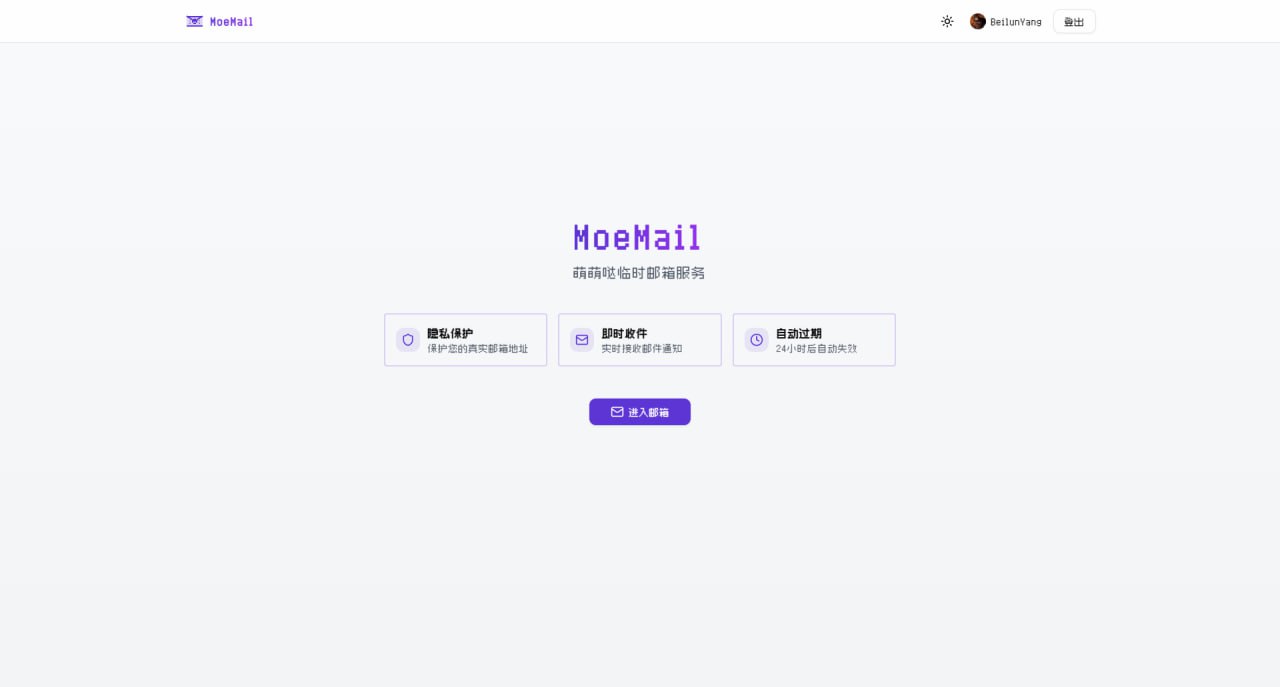
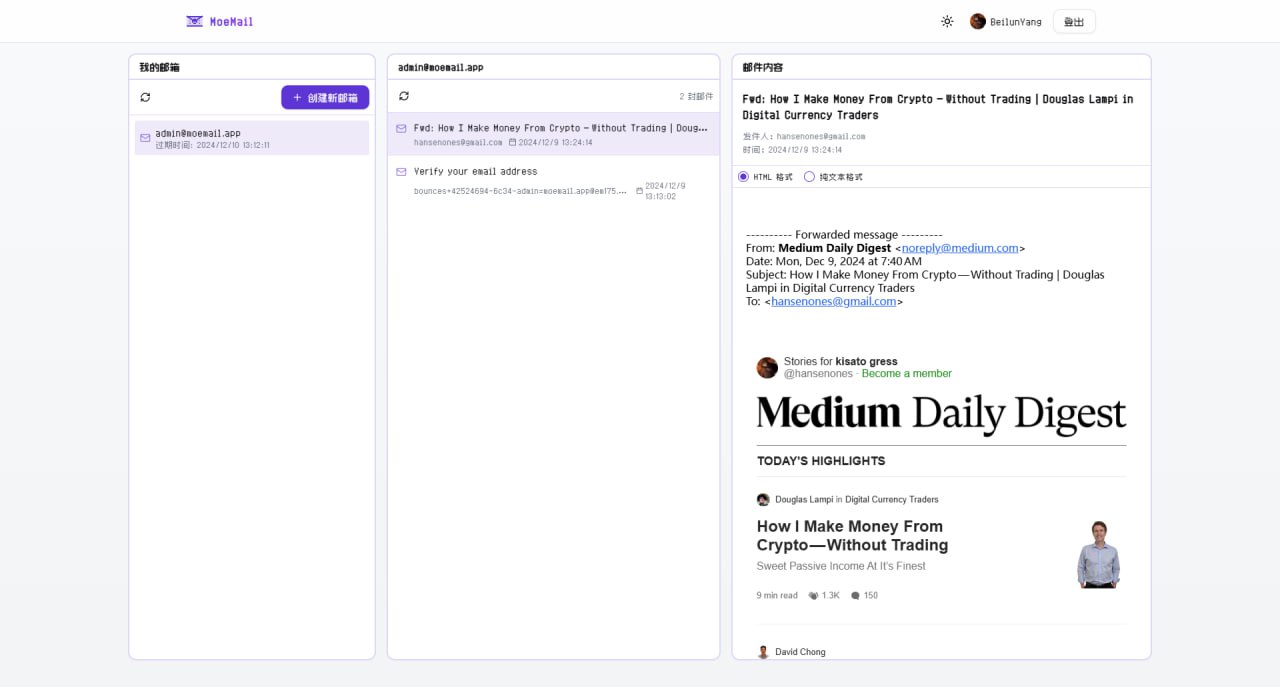
Documentation
Full Documentation: https://docs.moemail.app
The documentation site contains detailed usage guides, API documentation, deployment tutorials, and other complete information.
Features
- 🔒 Privacy Protection: Protect your real email address from spam and unnecessary subscriptions
- ⚡ Real-time Receipt: Automatic polling, receive email notifications instantly
- ⏱️ Flexible Validity: Supports 1 hour, 24 hours, 3 days, or permanent validity
- 🎨 Theme Switching: Supports light and dark modes
- 📱 Responsive Design: Perfectly adapted for desktop and mobile devices
- 🔄 Auto Cleanup: Automatically cleans up expired mailboxes and emails
- 📱 PWA Support: Support PWA installation
- 💸 Free Self-hosting: Built on Cloudflare, capable of free self-hosting without any cost
- 🎉 Cute UI: Simple and cute UI interface
- 📤 Sending Function: Support sending emails using temporary addresses, based on Resend service
- 🔔 Webhook Notification: Support receiving new email notifications via webhook
- 🛡️ Permission System: Role-based access control system
- 🔑 OpenAPI: Support accessing OpenAPI via API Key
- 🌍 Multi-language Support: Supports Chinese and English interfaces, freely switchable
Tech Stack
- Framework: Next.js (App Router)
- Platform: Cloudflare Pages
- Database: Cloudflare D1 (SQLite)
- Authentication: NextAuth with GitHub/Google Login
- Styling: Tailwind CSS
- UI Components: Custom components based on Radix UI
- Email Handling: Cloudflare Email Workers
- Type Safety: TypeScript
- ORM: Drizzle ORM
- Internationalization: next-intl
Local Run
Prerequisites
- Node.js 18+
- Pnpm
- Wrangler CLI
- Cloudflare Account
Installation
- Clone the repository:
git clone https://github.com/beilunyang/moemail.git
cd moemail
- Install dependencies:
pnpm install
- Setup Wrangler:
cp wrangler.example.json wrangler.json
cp wrangler.email.example.json wrangler.email.json
cp wrangler.cleanup.example.json wrangler.cleanup.json
Set Cloudflare D1 database name and database ID.
- Setup Environment Variables:
cp .env.example .env.local
Set AUTH_GITHUB_ID, AUTH_GITHUB_SECRET, AUTH_SECRET.
- Create local database schema:
pnpm db:migrate-local
Development
- Start development server:
pnpm dev
- Test Email Worker: Currently cannot run and test locally, please use Wrangler to deploy the email worker and test.
pnpm deploy:email
- Test Cleanup Worker:
pnpm dev:cleanup
pnpm test:cleanup
- Generate Mock Data (Mailboxes and Messages):
pnpm generate-test-data
Deployment
Video Tutorial
https://www.youtube.com/watch?v=Vcw3nqsq2-E
Local Wrangler Deployment
- Create .env file
cp .env.example .env
-
Set Environment Variables in the .env file.
-
Run deployment script
pnpm dlx tsx ./scripts/deploy/index.ts
Github Actions Deployment
This project supports automated deployment using GitHub Actions. It supports the following triggers:
- Auto Trigger: Automatically triggers deployment flow when a new tag is pushed.
- Manual Trigger: Manually trigger in the GitHub Actions page.
Deployment Steps
-
Add the following Secrets in GitHub repository settings:
CLOUDFLARE_API_TOKEN: Cloudflare API TokenCLOUDFLARE_ACCOUNT_ID: Cloudflare Account IDAUTH_GITHUB_ID: GitHub OAuth App IDAUTH_GITHUB_SECRET: GitHub OAuth App SecretAUTH_SECRET: NextAuth Secret, used to encrypt session, please set a random stringCUSTOM_DOMAIN: Custom domain for the website (Optional, if empty, uses Cloudflare Pages default domain)PROJECT_NAME: Pages project name (Optional, if empty, defaults to moemail)DATABASE_NAME: D1 database name (Optional, if empty, defaults to moemail-db)KV_NAMESPACE_NAME: Cloudflare KV namespace name, used for site settings (Optional, if empty, defaults to moemail-kv)
-
Choose trigger method:
Method 1: Push Tag Trigger
# Create a new tag
git tag v1.0.0

# Push tag to remote repository
git push origin v1.0.0
Method 2: Manual Trigger
- Go to the Actions page of the repository
- Select "Deploy" workflow
- Click "Run workflow"
-
Deployment progress can be viewed in the Actions tab of the repository.
Notes
- Ensure all Secrets are set correctly.
- When using tag trigger, the tag must start with
v(e.g., v1.0.0).
Email Domain Configuration
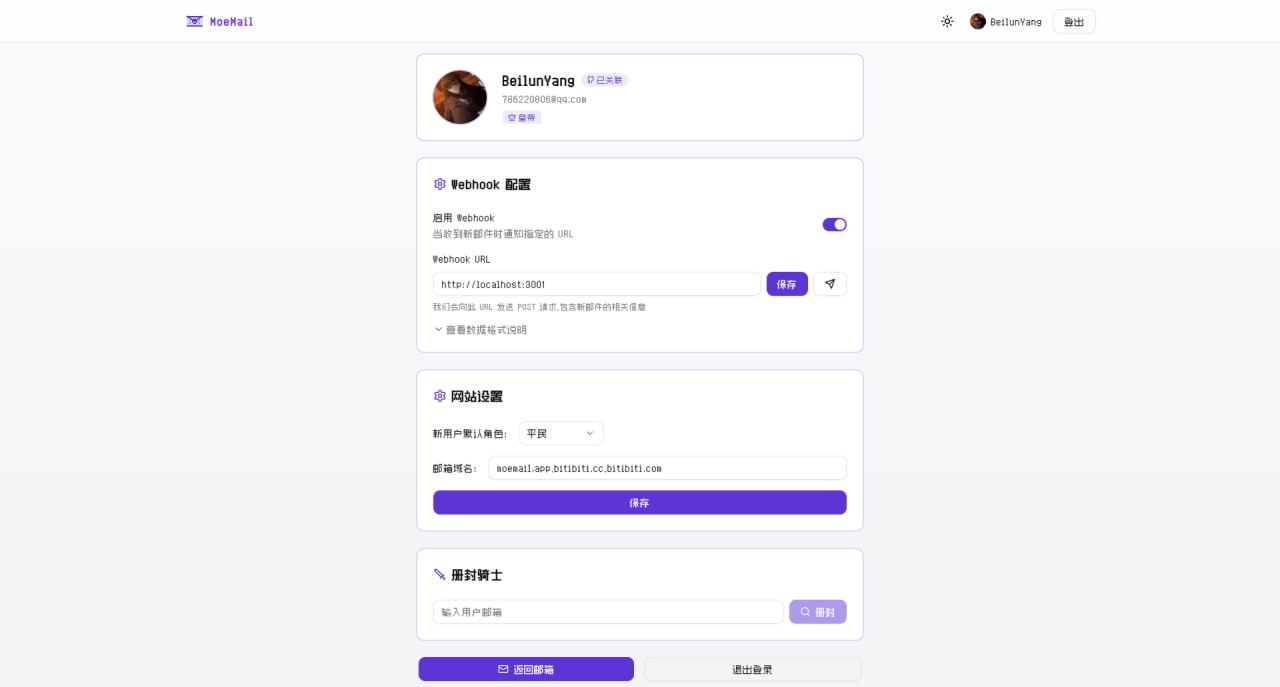
In the MoeMail User Profile page, you can configure the site's email domains. Supports multiple domain configurations, separated by commas.
Cloudflare Email Routing Configuration
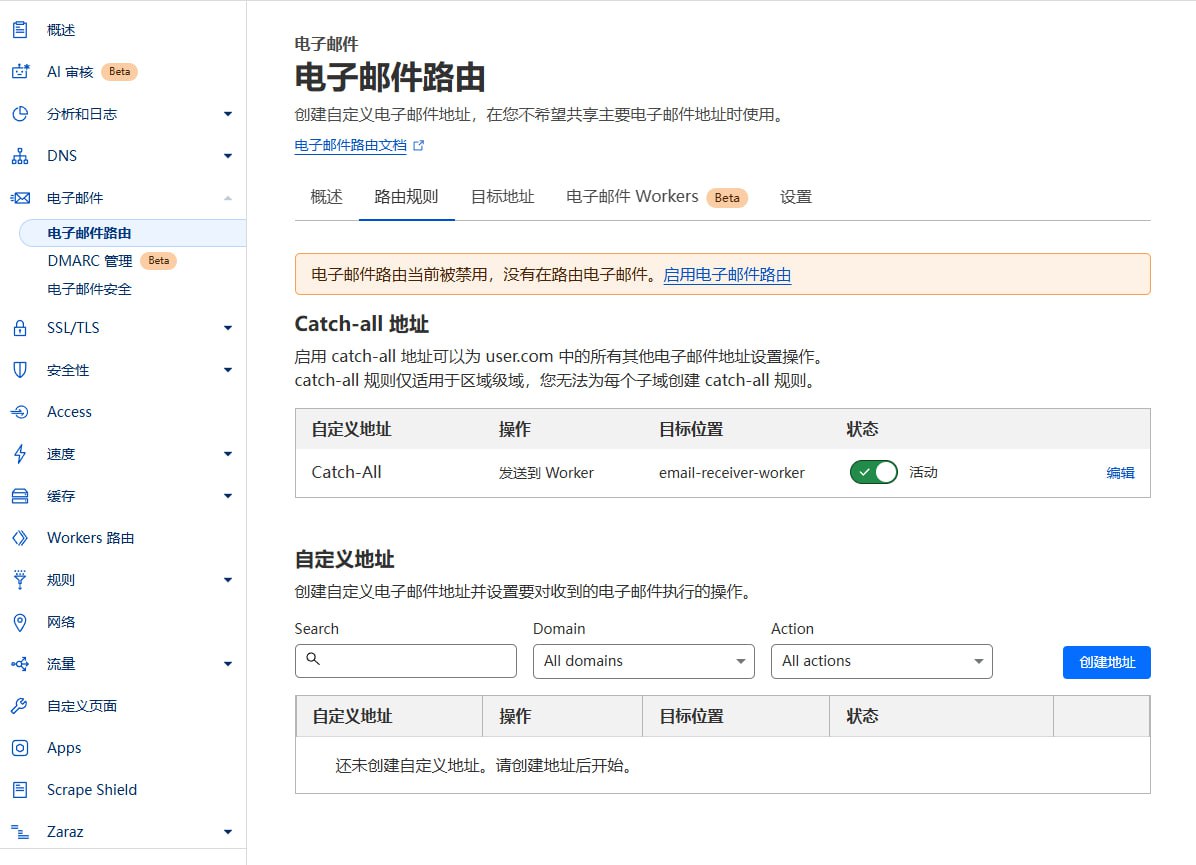
To make email domains effective, you also need to configure email routing in the Cloudflare console to forward received emails to the Email Worker.
- Login to Cloudflare Console
- Select your domain
- Click "Email" -> "Email Routing" in the left menu
- If it shows "Email Routing is currently disabled", please click "Enable Email Routing"
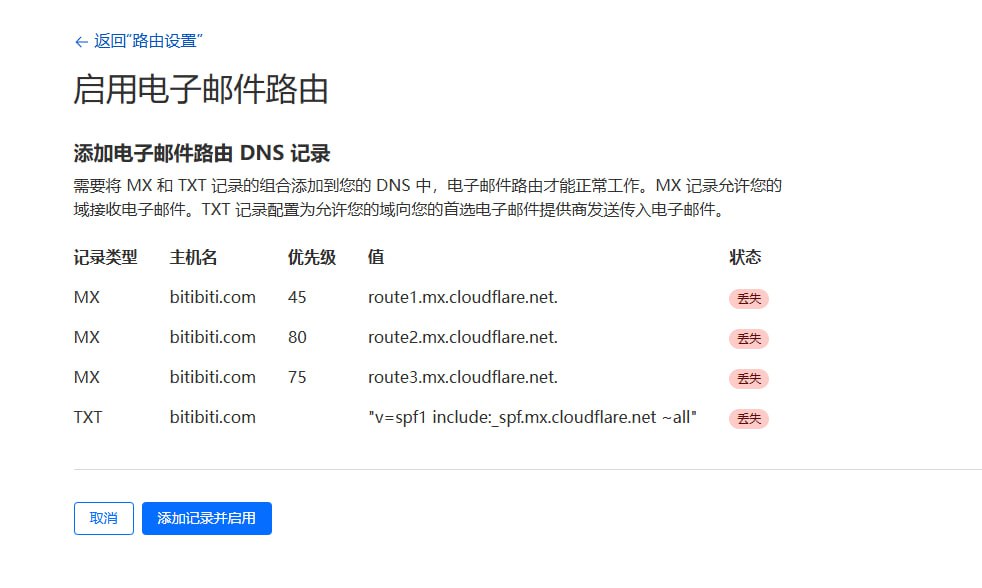
- After clicking, it will prompt you to add Email Routing DNS records, click "Add records and enable"
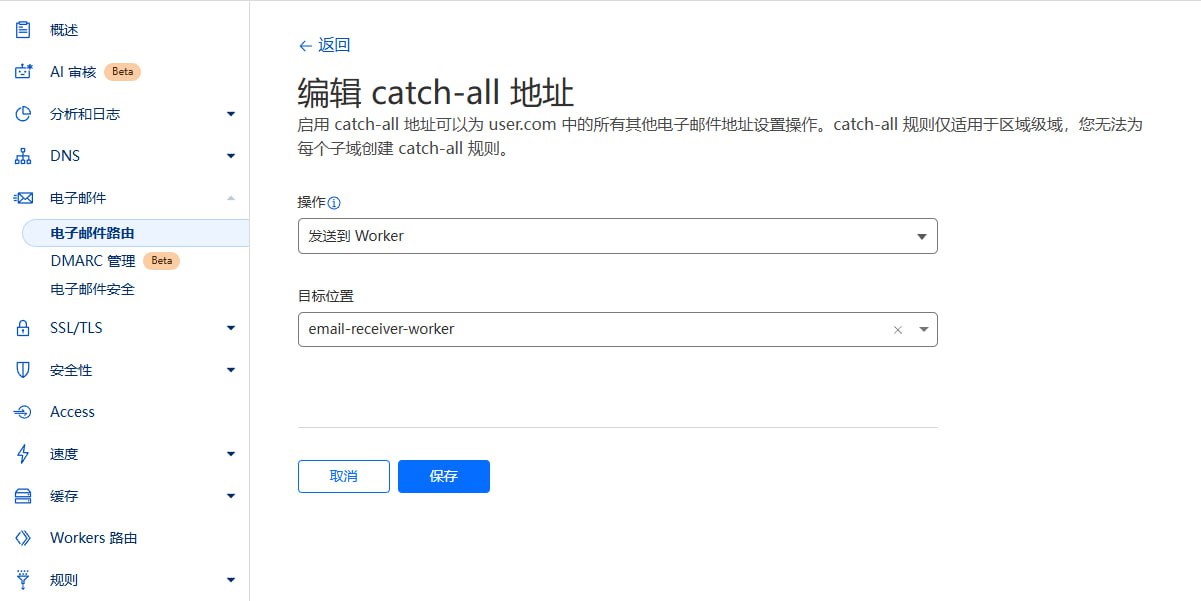
- Configure Routing Rules:
- Catch-all address: Enable "Catch-all"
- Edit Catch-all address
- Action: Select "Send to Worker"
- Destination: Select the "email-receiver-worker" you just deployed
- Save
Notes
- Ensure domain DNS is hosted on Cloudflare.
- Email Worker must be successfully deployed.
- If Catch-All status is unavailable (stuck loading), please click
Destination addressesnext toRouting rules, and bind an email address there.
Permission System
The project uses a Role-Based Access Control (RBAC) system.
Role Configuration
New user default roles are configured by the Emperor in the site settings in the User Profile:
- Duke: New users get temporary email, Webhook config permissions, and API Key management permissions.
- Knight: New users get temporary email and Webhook config permissions.
- Civilian: New users have no permissions, need to wait for Emperor to promote to Knight or Duke.
Role Levels
The system includes four role levels:
-
Emperor
- Website Owner
- Has all permissions
- Only one Emperor per site
-
Duke
- Super User
- Can use temporary email features
- Can configure Webhook
- Can create API Key to call OpenAPI
- Can be demoted to Knight or Civilian by Emperor
-
Knight
- Advanced User
- Can use temporary email features
- Can configure Webhook
- Can be demoted to Civilian or promoted to Duke by Emperor
-
Civilian
- Regular User
- No permissions
- Can be promoted to Knight or Duke by Emperor
Role Upgrade
-
Become Emperor
- The first user to visit
/api/roles/init-emperorinterface will become the Emperor (Website Owner). - Once an Emperor exists, no other user can be promoted to Emperor.
- The first user to visit
-
Role Changes
- The Emperor can set other users as Duke, Knight, or Civilian in the User Profile page.
Permission Details
- Email Management: Create and manage temporary emails
- Webhook Management: Configure Webhooks for email notifications
- API Key Management: Create and manage API access keys
- User Management: Promote/Demote user roles
- System Settings: Manage global system settings
System Settings
System settings are stored in Cloudflare KV, including:
DEFAULT_ROLE: Default role for new users, values:CIVILIAN,KNIGHT,DUKEEMAIL_DOMAINS: Supported email domains, comma-separatedADMIN_CONTACT: Administrator contact infoMAX_EMAILS: Maximum number of emails per user
Emperor role can configure these in the User Profile page.
Sending Emails
MoeMail supports sending emails using temporary addresses, based on Resend service.
Features
- 📨 Send from Temp Email: Use created temporary emails as sender
- 🎯 Role Limits: Different roles have different daily sending limits
- 💌 HTML Support: Supports rich text email format
Role Sending Limits
| Role | Daily Limit | Description |
|---|---|---|
| Emperor | Unlimited | Admin has no limits |
| Duke | 5/day | Default 5 emails per day |
| Knight | 2/day | Default 2 emails per day |
| Civilian | Forbidden | No sending permission |
💡 Tip: The Emperor can customize the daily limits for Dukes and Knights in the Mail Service Configuration.
Configure Sending Service
-
Get Resend API Key
- Register at Resend
- Create API Key in console
- Copy API Key for later use
-
Configure Service
- Login as Emperor
- Go to User Profile
- In "Resend Service Configuration":
- Enable Sending Service switch
- Enter Resend API Key
- Set daily limits for Duke and Knight (Optional)
- Save configuration
-
Verify Configuration
- After saving, authorized users will see a "Send Email" button in the email list
- Click to open dialog and test
How to Send
-
Create Temp Email
- Create a new temporary email in Mailbox page
-
Send Email
- Find the email in the list
- Click "Send Email" button next to it
- Fill in:
- Recipient address
- Subject
- Content (supports HTML)
- Click "Send"
-
View History
- Sent emails are saved in the message list of the corresponding mailbox
- View all sent/received emails in mailbox detail page
Notes
- 📋 Resend Limits: Please note Resend's sending limits and pricing
- 🔐 Domain Verification: Using custom domains requires verification in Resend
- 🚫 Anti-Spam: Please follow email sending standards, avoid spamming
- 📊 Quota Monitoring: System counts daily usage, stops sending when limit reached
- 🔄 Quota Reset: Daily quota resets at 00:00
Webhook Integration
When a new email is received, the system sends a POST request to the configured and enabled Webhook URL.
Request Header
Content-Type: application/json
X-Webhook-Event: new_message
Request Body
{
  "emailId": "email-uuid",
  "messageId": "message-uuid",
  "fromAddress": "sender@example.com",
  "subject": "Email Subject",
  "content": "Email Text Content",
  "html": "Email HTML Content",
  "receivedAt": "2024-01-01T12:00:00.000Z",
  "toAddress": "your-email@moemail.app"
}
Configuration
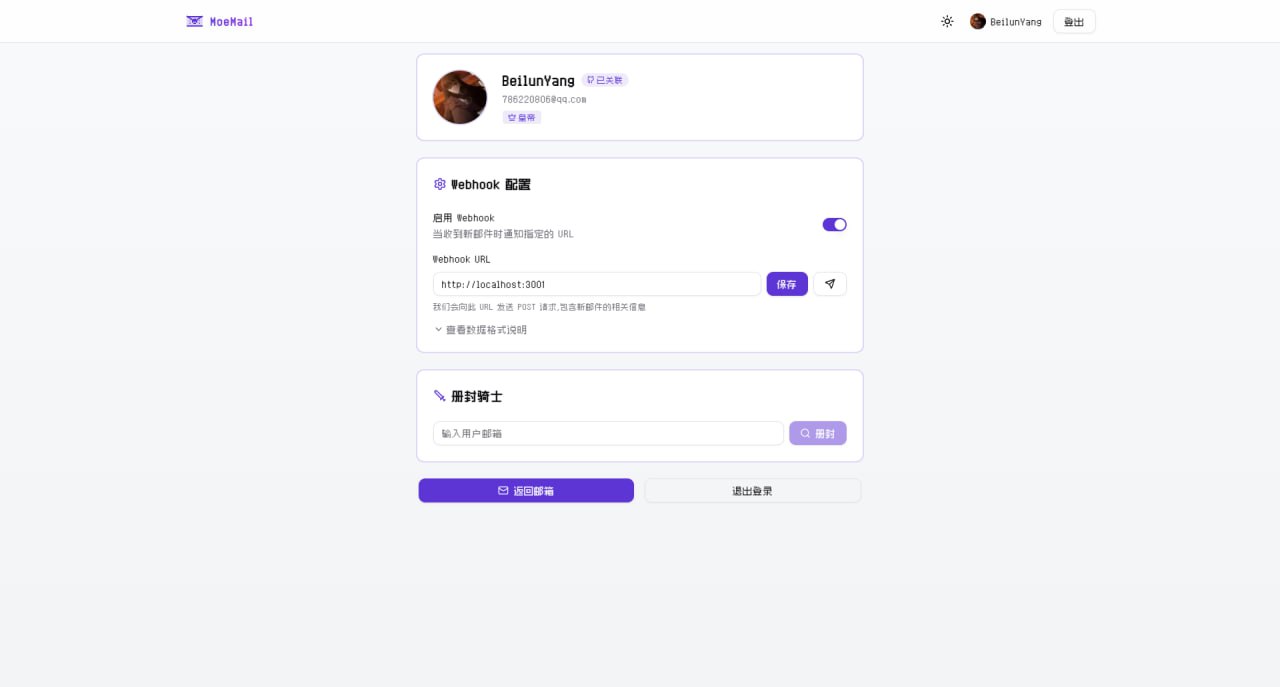
- Click avatar to enter User Profile
- Enable Webhook
- Set notification URL
- Click Test button
- Save to receive notifications
Testing
The project provides a simple test server:
pnpm webhook-test-server
The test server listens on port 3001 (http://localhost:3001) and prints received Webhook details.
For external testing, use Cloudflare Tunnel:
pnpx cloudflared tunnel --url http://localhost:3001
Notes
- Webhook must respond within 10 seconds
- Non-2xx response triggers retry
OpenAPI
The project provides OpenAPI interfaces, accessible via API Key. API Keys can be created in User Profile (Requires Duke or Emperor role).
Using API Key
Add API Key to request header:
X-API-Key: YOUR_API_KEY
API Endpoints
Get System Config
GET /api/config
Response:
{
  "defaultRole": "CIVILIAN",
  "emailDomains": "moemail.app,example.com",
  "adminContact": "admin@example.com",
  "maxEmails": "10"
}
Generate Temp Email
POST /api/emails/generate
Content-Type: application/json

{
  "name": "test",
  "expiryTime": 3600000,
  "domain": "moemail.app"
}
Params:
name: Prefix (optional)expiryTime: Validity in ms. 3600000(1h), 86400000(24h), 604800000(7d), 0(Permanent)domain: From config
Response:
{
  "id": "email-uuid-123",
  "email": "test@moemail.app"
}
Get Email List
GET /api/emails?cursor=xxx
Get Messages for Email
GET /api/emails/{emailId}?cursor=xxx
Delete Email
DELETE /api/emails/{emailId}
Get Single Message
GET /api/emails/{emailId}/{messageId}
Create Email Share Link
POST /api/emails/{emailId}/share
Content-Type: application/json

{
  "expiresIn": 86400000
}
Get Email Share Links
GET /api/emails/{emailId}/share
Delete Email Share Link
DELETE /api/emails/{emailId}/share/{shareId}
Create Message Share Link
POST /api/emails/{emailId}/messages/{messageId}/share
Content-Type: application/json

{
  "expiresIn": 86400000
}
Get Message Share Links
GET /api/emails/{emailId}/messages/{messageId}/share
Delete Message Share Link
DELETE /api/emails/{emailId}/messages/{messageId}/share/{shareId}
Environment Variables
Authentication
AUTH_GITHUB_ID: GitHub OAuth App IDAUTH_GITHUB_SECRET: GitHub OAuth App SecretAUTH_GOOGLE_ID: Google OAuth App IDAUTH_GOOGLE_SECRET: Google OAuth App SecretAUTH_SECRET: NextAuth Secret
Cloudflare
CLOUDFLARE_API_TOKEN: Cloudflare API TokenCLOUDFLARE_ACCOUNT_ID: Cloudflare Account IDDATABASE_NAME: D1 Database NameDATABASE_ID: D1 Database ID (Optional, auto-fetched if empty)KV_NAMESPACE_NAME: KV NameKV_NAMESPACE_ID: KV ID (Optional, auto-fetched if empty)CUSTOM_DOMAIN: Custom domainPROJECT_NAME: Pages Project Name
Github OAuth App Configuration
- Login Github Developer create new OAuth App
- Generate
Client IDandClient Secret - Configure:
Application name:<your-app-name>Homepage URL:https://<your-domain>Authorization callback URL:https://<your-domain>/api/auth/callback/github
Google OAuth App Configuration
- Visit Google Cloud Console create project
- Configure OAuth consent screen
- Create OAuth Client ID
- Type: Web application
- Authorized Javascript origins:
https://<your-domain> - Authorized redirect URIs:
https://<your-domain>/api/auth/callback/google
- Get
Client IDandClient Secret - Configure env vars
AUTH_GOOGLE_IDandAUTH_GOOGLE_SECRET
Contribution
Welcome to submit Pull Requests or Issues to help improve this project.
License
Community

|
|
| Follow official account for more project updates, AI, Blockchain, and Indie Dev news. | Add WeChat, remark "MoeMail" to join the WeChat community group. |
Support
If you like this project, please give it a Star ⭐️
Or sponsor it